Controls and display guide
Devastate Game Controls: Android Touch and PC Emulator Guide
Devastate game controls are easiest to understand when you separate the input from the result. On a phone or tablet, the input is usually a tap, hold, drag, or menu selection. On a PC emulator, the same action becomes a mouse click or a mapped key. This guide gives you a practical control map, a safe way to test an unfamiliar button, and a short path for cropped, stretched, black, or unresponsive screens. It stays version-aware: a control label, layout, or shortcut can change between builds, so the screen in front of you remains the final reference.
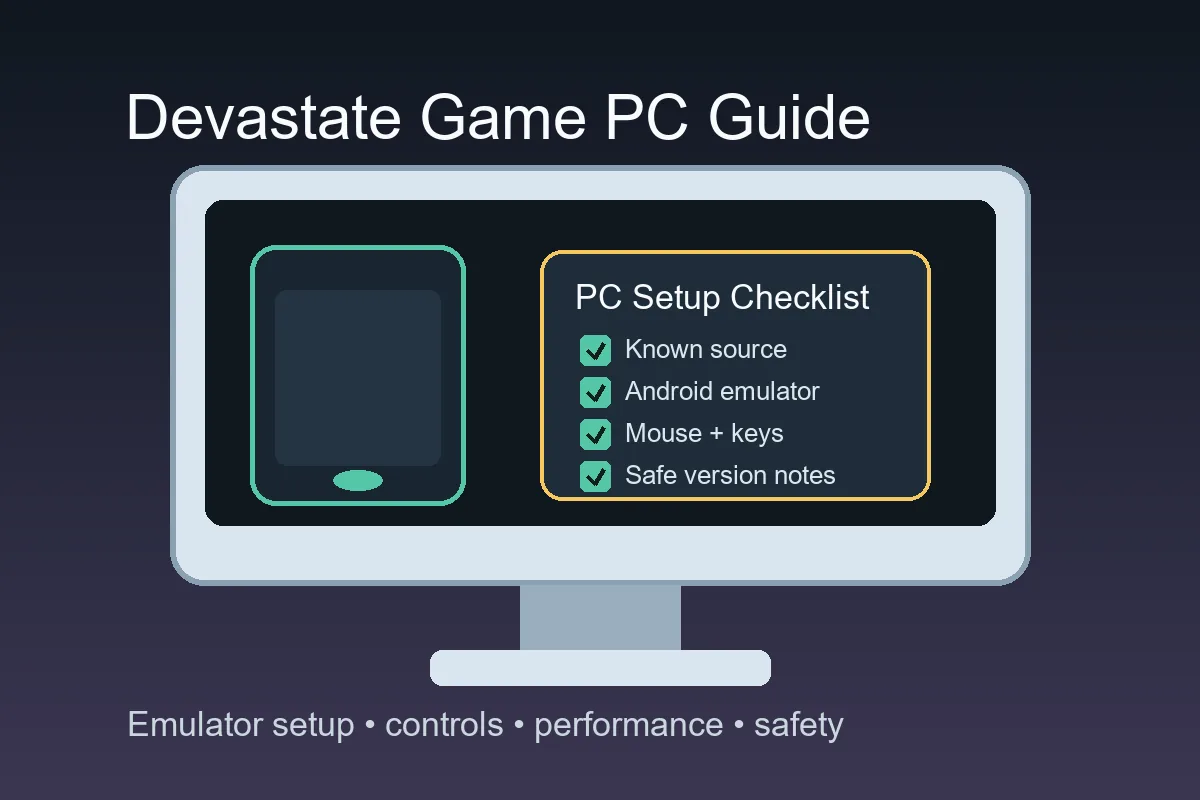
What Are the Devastate Game Controls?
There is no dependable one-size-fits-all Devastate game controls sheet for every build. The common pattern is touch-first interaction: tap the character or a highlighted area, choose a dialogue response, open an item or task menu, and wait for the screen to confirm what changed. When the game runs in an Android emulator, left click normally replaces a tap and the emulator's key mapper can add repeatable shortcuts. Treat these as starting mappings, not promises about a specific version.
Mobile
Tap the target, then wait
Use one tap on the character area, dialogue choice, item slot, task button, wardrobe entry, or menu icon. Wait for the complete animation, response line, or panel transition before trying another control.
PC
Map clicks before keys
An emulator can turn a touch action into a left click. Learn the screen with the mouse first, then map a key only for a repeated action such as opening inventory or returning to a menu.
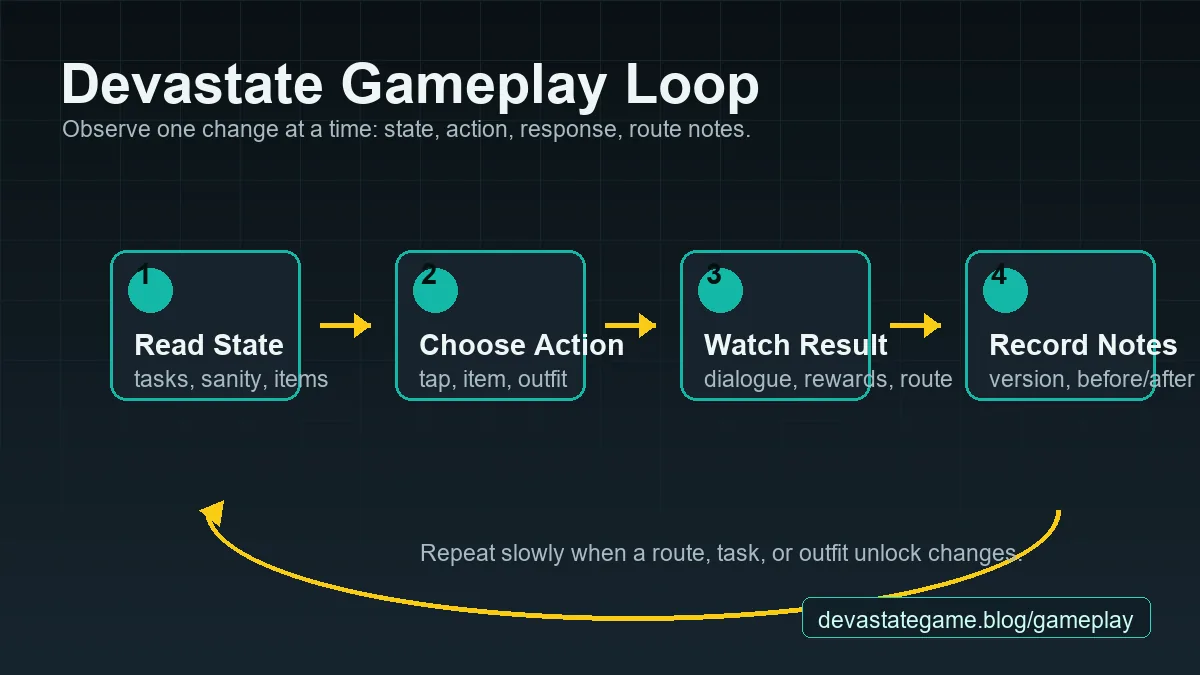
Devastate Touch Controls on Android and iOS
Devastate game controls are usually organized around a main scene, a character or interaction area, a row of items, task or event buttons, and a menu or wardrobe entry. Exact positions can move when the screen rotates, a language patch changes labels, or a device uses a different aspect ratio. Start with low-risk navigation. Open a menu, read its label, close it, and only then test an action that can change a task, item, outfit, or route state.
| Input | Common use | Safe first check |
|---|---|---|
| Single tap | Select a dialogue choice, item, task, or menu | Tap once and wait for a label, sound, or state change. |
| Hold | Inspect or keep a control active in builds that support it | Hold briefly without combining it with another action. |
| Drag | Move an outfit, scroll a list, or adjust a control | Drag a small distance and release before changing route state. |
Dialogue
Tap to continue, choose once, read the response
Dialogue controls can include a continue tap, a response choice, and a return to the main scene. A quick sequence of taps can skip the evidence you need, so read the response and check whether a task or status value changed.
Items
Open the item menu before using an item
An item picture or slot may be a selector rather than an immediate action. Open the inventory, read the item name, check whether the game shows a confirmation state, and use one item only when you can observe its response.
Devastate PC and Emulator Controls
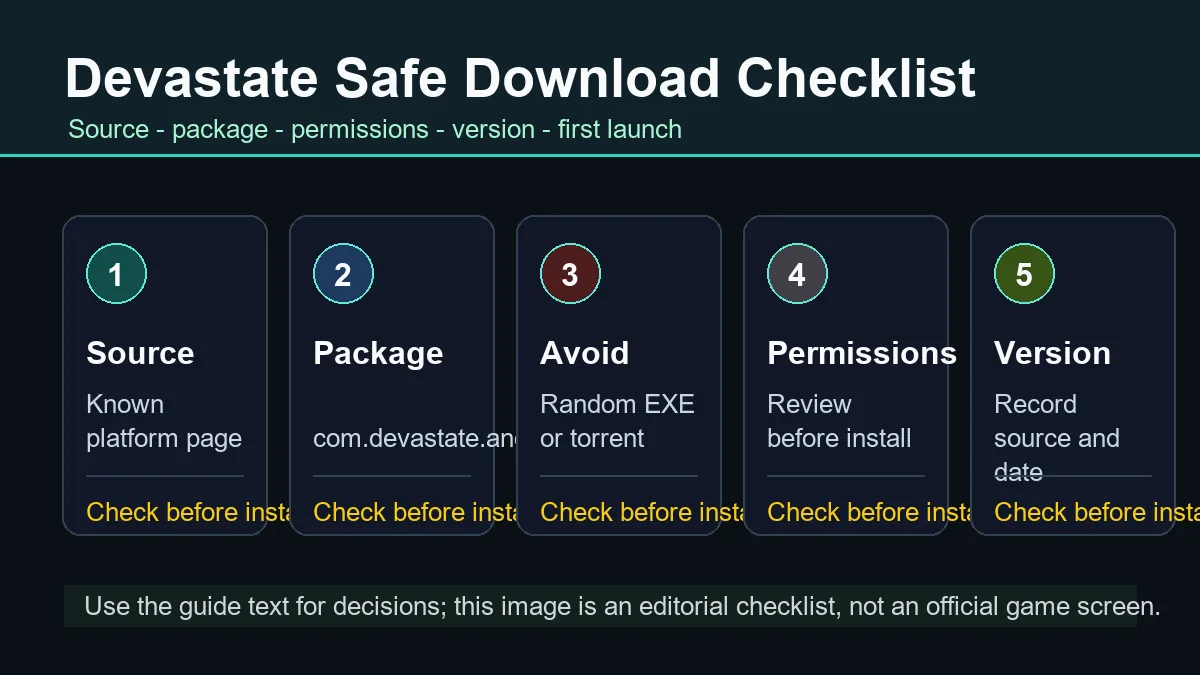
Using Devastate game controls on a PC usually means using an Android emulator or another platform path that provides its own input layer. The emulator can make a touch-first game comfortable, but it also adds a second place where input can fail. Check the game window first, then the emulator's display and key-mapping panel. Do not use a random EXE or modified package as a control fix; a control problem should be solved by the known platform and its settings.
| Game action | Mouse starting point | Optional key mapping |
|---|---|---|
| Tap a scene or character | Left click the visible target | One key only after the target is stable. |
| Open inventory | Click the item row or menu icon | Map a key if the emulator supports a clear, non-overlapping zone. |
| Choose dialogue | Click the response button | Avoid a key that can trigger two choices. |
Order
Learn the window before mapping shortcuts
Resize the emulator until the portrait scene, text, and controls are readable. Identify the character area, item row, task entry, wardrobe, and settings before adding keys. A shortcut is useful only when you can still see the result it triggers.
Keyboard
Use keys for repeated navigation, not guesses
A key map can reduce repeated clicks, but it cannot explain an unknown icon or unlock a route. Map one stable action, test it from a known state, and remove it if the emulator sends duplicate input or opens the wrong panel.
Cropped, Stretched, Black, or Missing Controls
Display problems can look like broken controls. A cropped portrait window may hide the back button; a stretched layout can move the tap target; a black screen can prevent the game from receiving input; and a tiny scale can make a valid button appear absent. Change one display setting at a time and return to a known screen after each change. The goal is to restore a readable, repeatable input path rather than chase a perfect preset.
| Symptom | First setting to inspect | What to record |
|---|---|---|
| Left or right edge is cut off | Portrait ratio, fit-to-window, or emulator crop | Window size and whether the full menu returns. |
| Controls look stretched | Aspect ratio or display scaling | The setting changed and the new target position. |
| Screen is black | Renderer, orientation, or app launch state | Whether audio or a menu response still appears. |
Step 1
Restore a readable portrait view
Fit the game window so the complete scene and menu edges are visible. Avoid testing a task or item while the bottom row is clipped. A readable baseline lets you tell a display problem from a disabled control.
Step 2
Check input alignment
Move the pointer to a harmless menu or close button. If the highlight appears away from the cursor, inspect the emulator's input offset or scaling before changing the game route. Test the same target twice after the correction.
How to Map an Unfamiliar Devastate Control
When a hand icon, small dot, or nearby panel has no clear label, use a four-part observation routine. Look at the surrounding screen, make one low-risk input, compare the response, and write down the build. This produces a useful control map without turning a translated screenshot or a community claim into a universal manual.
Look
Read the context before the shape
Note whether the control sits beside the character, item row, task panel, wardrobe, status value, or settings. Location narrows the possibilities. Record nearby words in the current language because a translated patch may use a different label.
Devastate Controls Troubleshooting Checklist
Use this order when a tap, click, or mapped key does nothing. Start with focus and visibility, then check the input layer, and only then consider a restart. This keeps your evidence useful and avoids downloading an unrelated build because one control was hidden by a display setting.
| Check | Question | Next action |
|---|---|---|
| Focus | Does the game window receive the click or key? | Click the game area once, then test a harmless menu. |
| Visibility | Is the target fully inside the window? | Restore portrait fit and inspect crop or scale. |
| Mapping | Does the cursor or key zone line up with the target? | Remove the mapping and compare with a direct click. |
No response
Compare direct click with mapped input
If a key fails, click the visible target directly. If the click works, the game is probably receiving input and the mapping needs adjustment. If both fail, inspect focus, display crop, and whether the current screen expects another state first.
Wrong response
Return to a clean starting state
A wrong dialogue choice, item use, or task claim can change the next screen. Return to a known state when possible, repeat one input, and compare the response. Do not test several fixes at once because you will lose the cause.
Where to Go After the Controls Guide
Use the page that matches the next question instead of mixing every Devastate intent into one control map. The controls guide explains input and display states; related pages handle progression, platform identity, downloads, and version notes.
Beginner
Learn the first-session loop
The Beginner Guide explains how to read the main screen, use items carefully, watch status values, and follow tasks before chasing endings. It is the better starting point when you do not yet know what the control should change.
Open the Beginner GuidePlatform
Check PC, online, or mobile routing
The PC page covers emulator setup, Online separates browser claims, and iOS or APK pages cover platform-specific evidence. Keep those pages separate from a control mapping because the source and distribution questions are different.
Open PC guidanceSafety
Verify a file before changing builds
Use Download for the recorded source path and Safe Download for package, permission, redirect, and first-launch checks. If a control problem leads you to a new file, treat that as a new verification task.
Open Safe DownloadDevastate Game Controls FAQ
What are the basic Devastate game controls?
Start with a single tap or mouse click on the visible character, dialogue, item, task, wardrobe, or menu target. Wait for the response before adding a hold, drag, or keyboard mapping.
Can I play Devastate with a mouse and keyboard?
An Android emulator can translate touch into mouse clicks and optional key mappings. Learn the game window with direct clicks first, then map one repeatable action and test it from a known state.
Why are the Devastate controls cropped or off screen?
Portrait fit, aspect ratio, display scaling, DPI, or an input offset can hide or move targets. Restore a readable full window, compare cursor and highlight positions, and change one setting at a time.
How do I fix a black Devastate screen?
Check the emulator renderer, orientation, launch state, and display fit. Record whether audio or menu responses still appear. Do not install an unknown replacement file simply because it promises a display fix.
How do I identify an unlabeled hand or icon?
Read the surrounding screen, record the starting state, tap or click once, wait, and compare the output. It may be an interaction cue, status signal, item slot, or menu marker; shape alone is not proof.